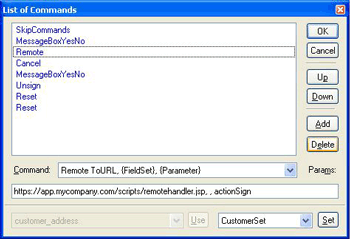
The Remote command initiates messaging to a server for form data processing, such as database connectivity or remote form signing. This and other commands can be added to your form using Action Buttons, Form Objects or Bubble Tips.
The parameters for the Remote command are as follows: ToURL, {FieldSet}, {Parameter}. Here is what they mean and how they are used (in the example of form signing):
ToURL: this is the URL of a server application that is used to process the request.
{FieldSet}: this parameter is used to transfer data from the form to the server in the request.
{Parameter}: this is an optional string that can be transmitted to the server as an additional hint to indicate how the request should be processed. For remote signing, this parameter can specify which fieldset needs to be signed.
Commands can be added to Action Buttons by drawing a button using the Object Toolbar, then double-clicking to display the list of commands. Press the Add button and select "Remote ToURL..." from the dropdown list. Enter the URL, FieldSet name, and action parameter in the Parameters (Params) section.
After clicking OK, you can resize your button, and select the text to edit it. Double-clicking on the button again displays the List of Commands so you can add multiple commands to a single button.
Action Button
Command:
Remote ToURL, {FieldSet}, {Parameter}
Example Parameters:
Commands can be added to static form objects (such as text, boxes, polygons, freehand lines, ellipses, and pictures) using the HyperLink property of the object. Hyperlinks to webpages start with "http://" while commands are preceded by "cmd://".
Form Object
Command:
cmd://Remote ToURL, {FieldSet}, {Parameter}
Example Parameters:
cmd://Remote https://app.mycompany.com/scripts/remotehandler.jsp, SetOfAllFields, actionFirst
cmd://Remote https://app.mycompany.com/scripts/remotehandler.jsp, ,actionSign
Commands can be added to Bubble Tips for any field (such as editboxes, checkboxes, radio buttons) to help guide users while they're filling out your form. Bubble Tips are actually mini-browsers and use the same HTML formatting as regular webpages. The only difference is Bubble Tips can also include commands. Select the BubbleTip property of the fillable object to display the HTML BubbleTip window. After entering your Bubble Tip, select the word or phrase and press the Link button to enter the command in the Create Hyperlink window.
BubbleTip
Command:
cmd://Remote ToURL, {FieldSet}, {Parameter}
Example Parameters:
cmd://Remote https://app.mycompany.com/scripts/remotehandler.jsp, SetOfAllFields, actionFirst
cmd://Remote https://app.mycompany.com/scripts/remotehandler.jsp, ,actionSign