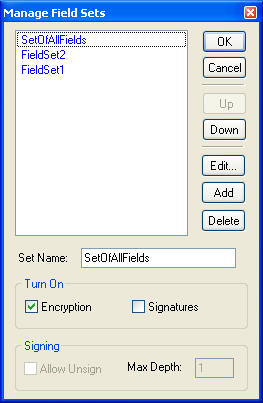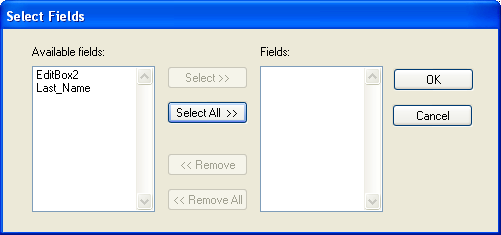
For many commands, such as Encrypt, Sign, Validate, etc., fields should be aggregated into field sets. Managing field sets will probably be a central part of your form development, so you should become comfortable with the Manage Field Sets window, and the Select Fields window within a field set.
Each field set has encryption and signature capabilities turned on only by explicit checkboxes in the Manage Field Sets window:
Encryption - Specifies whether or not the field set can be encrypted.
Signatures - Specifies whether or not the field set can be signed using a digital certificate, and applies to the whole set of attachments rather than individual files.
Allow Unsign - Once signed, field sets can only be unsigned (have their signature(s) cleared) if "Allow Unsign" is explicitly checked.
Max Depth - Max Depth refers to the maximum number of signatures (of different people) that can be applied to the field set (this is multiple signature support). By default Max Depth is 1.
Note: Field sets with Encryption checked are not allowed to overlap.
For example, let's say you have a contract that is to be signed by two parties. You might develop 2 field sets:
FieldSetSigner1 - Signature fields for signer 1
FieldSetSigner2 - Signature fields for signer 2
Signer1 would execute the command: Sign/Unsign FieldSet, FieldSetSigner1
Signer2 would execute the command: Sign/Unsign FieldSet, FieldSetSigner2
So both parties can sign the information (multiple signatures), and they each sign their own signature fields (once).
After you've added all the fields on your form, select Field Sets from the Form Menu to display the Manage Field Sets window.
Press Add to add a new Field Set and provide a name for this Field Set next to Set Name.
Use the checkboxes to turn on encryption, signatures (certificates), unsigning, and Max Depth (that is, the number of users who will be able to sign this Field Set).
Press Edit to select fields which will be included in this Field Set.
Press OK to exit, or Add to add another Field Set.
Note: In order to sign your form, users must have a digital certificate.