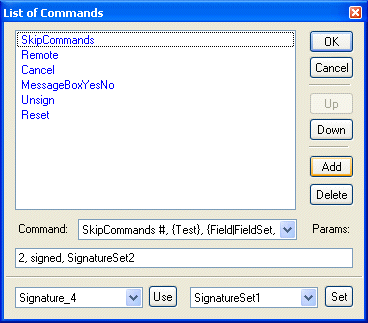
One of the more unusual commands required in an action button is the SkipCommands command. This allows you to skip a predetermined number of commands in the given sequence, based on the current condition of the form.
For example, if a form has already been signed and a user clicks on the Sign button again, instead of signing the form again, the SkipCommands command will skip the sign commands and instead cause the user to be notified that the form has already been signed and prevent any further action. This and other commands can be added to your form using Action Buttons, Form Objects or Bubble Tips.
The parameters for the SkipCommands command are as follows: #, {Test}, {Field|FieldSet}. Here is what they mean and how they are used:
#: This is the number of commands to skip immediately following the SkipCommands command. For example, two commands arebe skipped, namely the Remote command and the Cancel command.
{Test}: This is the evaluation criterion that is used to determine whether or not to skip the commands. For example, the test is "signed". If the designated field or field set is signed, then the two commands will be skipped; if the designated field or field set is not signed, the two commands will not be skipped. Similarly, you could also use "notsigned" as the evaluation criterion.
{Field|FieldSet}: This is used to designate the field or field set to be evaluated. For example, the designated field set is SignatureSet2. The command will therefore evaluate SignatureSet2 to see if it has been signed or not, and then skip or not skip commands as appropriate.
Note: Given the way the SkipCommands command works, you can see that the order of commands in the List of Commands dialog box is very important. To change the order of the commands, select a command by clicking on it in the main window and use the Up or Down buttons to move it in the sequence.
Commands can be added to Action Buttons by drawing a button using the Object Toolbar, then double-clicking to display the list of commands. Press the Add button and select "SkipCommands" from the dropdown list. Enter the number of commands to skip, the test criterion, and the name of the field or FieldSet that needs to meet the criterion in the Parameters (Params) section.
After clicking OK, you can resize your button, and select the text to edit it. Double-clicking on the button again displays the List of Commands so you can add multiple commands to a single button.
Action Button
Command:
SkipCommands, #, {Test}, {Field|FieldSet...}
Example Parameters:
2, signed, SignatureSet2