Certificate (X.509) Form Signing
 A digital certificate in any Formatta application is implemented using digital certificates infrastructure. A set of data is packed into a single memory block, which is passed to CryptoAPI for signing. The process then consists of hashing the block and encrypting the hash with the certificate's private key.
The signing and signature verification are performed on unencrypted data, so if the data is encrypted, it must be decrypted first.
Note: Formatta also supports signing using your existing ID / Password infrastructure, which you can use instead of digital certificates. See Formatta Form Signing for more information.
Form Author Signing With Certificates
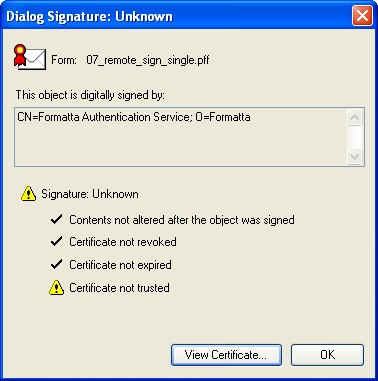
Form authors can sign blank forms (form layout) with a digital certificate. This allows Formatta Filler users to view your certificate and certify who designed and supplied the form. Any form requesting personal information, such as Social Security Numbers or financial information, should be signed using a digital certificate from an accredited Certificate Authority.
Form User Signing With Certificates
In addition to the form layout, which is to be considered fixed after the form is locked and distributed, individual users filing the form can use certificates to sign the data entered in the form. To enable this, the form's author must organize the fields into one or more Field Sets, and set the signing preferences for each Field Set, such as support for user signatures, "unsigning" the Field Set, and the maximum number of signatures which can be applied to that Field Set. In addition to this, the author must provide a method for the user to perform the signing operation, either by placing an Action Button (see or SignUnsign Command) or a hyperlink with an Object Command or Bubble Tips in the form.
If the form was designed to accept file attachments, the Attachments object can be configured in the same way as a Field Set in respect to the encryption and signatures.
Form authors can specify the trusted Root and Intermediate certificate authorities, to ensure that forms are signed by users with an approved certificate. For example, your company may require that only certificates issued by the company itself can be used to sign procurement forms. In another example, a bank may issue certificates to its customers and require customers to use the bank's certificate for signing forms.
To specify trusted Root and Intermediate certificate authorities:
-
the form with either Formatta Encryption or Digital Certificates encryption.
-
Select the checkbox entitled, "Sign with private key of your Signing Certificate" and press Lock to display the Certificate Filter screen.
-
Select the associated certificate from approved certificate authority.
-
Type in the URL for obtaining a new certificate in case the user does not have an approved certificate.
Displaying Signature Information
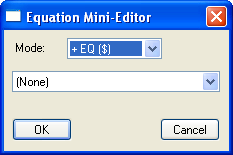
The names of all the people who signed the form can be displayed using the TextVar tool on the Object Toolbar. Draw a box to display the TextVar Equation Mini Editor, and select <Signers> from the drop down list. When the form is signed by a user, his / her name will automatically be displayed on the form based on information listed in the certificate.