 Import PDF FilesImport PDF Files
Formatta Designer can import Acrobat® PDF files and automatically convert them to Portable Form Files (PFF). This eliminates about 90% of the work involved in creating forms. Once the PDF is imported and converted to PFF, simply draw fillable-fields on the form. If the PDF is fillable (i.e., it has form fields), Formatta Designer will import those fields as well.
Converting file formats from one product to another is never a perfect science; however, Formatta's PDF conversion utility eliminates most of the work involved in creating an e-form. It's also the reason why Formatta has the lowest form conversion costs in the industry. In fact, forms created in any other product (such as Microsoft Word, WordPerfect, Lotus) can be imported into Formatta Designer. Just create a PDF using the original application and then import that PDF into Formatta Designer.
Note: PDF forms that are locked cannot be imported without knowing the password.
From the File menu, select Import and then PDF. The Choose PDF File window displays.
Select a PDF from your system by pressing Browse. You can choose to import all pages or just a single page as well as other settings.
Press OK to complete importing.
Note: Formatta Designer can convert the majority of PDFs without any problem; however, some PDFs are more challenging than others. The reason for this is that the PDF file format is in the public domain. Consequently, scores of companies now market their own PDF creation software. Sometimes these companies follow the standard for PDF creation, and sometimes they don't. Therefore, PDFs are not created equally.
If you're having difficulty importing a PDF document, open the PDF in the latest full version of Adobe Acrobat and save it with a new name. This process allows Acrobat to correct errors in the PDF file so it can be imported correctly in Formatta Designer. Note also, you must use the full version of Acrobat and not the free Reader product.
If you don't have a PDF file handy, download and save this sample PDF to try in Formatta Designer.
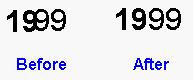
Here is a two page 1040 form named Federal_1040.pdf, downloaded from the IRS website. Fillable fields were not added to this PDF form, so you'll need to add them using Formatta Designer. In addition, there are some minor editing tasks to do. For example, the word "1999" doesn't quite import correctly. You can select the object and use the arrow keys to correct it.
The reason for this issue is the way fonts are translated. When a PDF is created, Acrobat converts the fonts in your original document to Adobe's own licensed fonts (such as Helvetica). Formatta Designer automatically converts these fonts back to a freely distributable type (such as Arial and Times New Roman) so you don't need to pay a font licensing fee when distributing your form.